

The itinerary view
How the day-by-day itinerary is laid out — trip-legs, days, stops, where you wake and sleep, and the Right Now marker while a trip is underway.
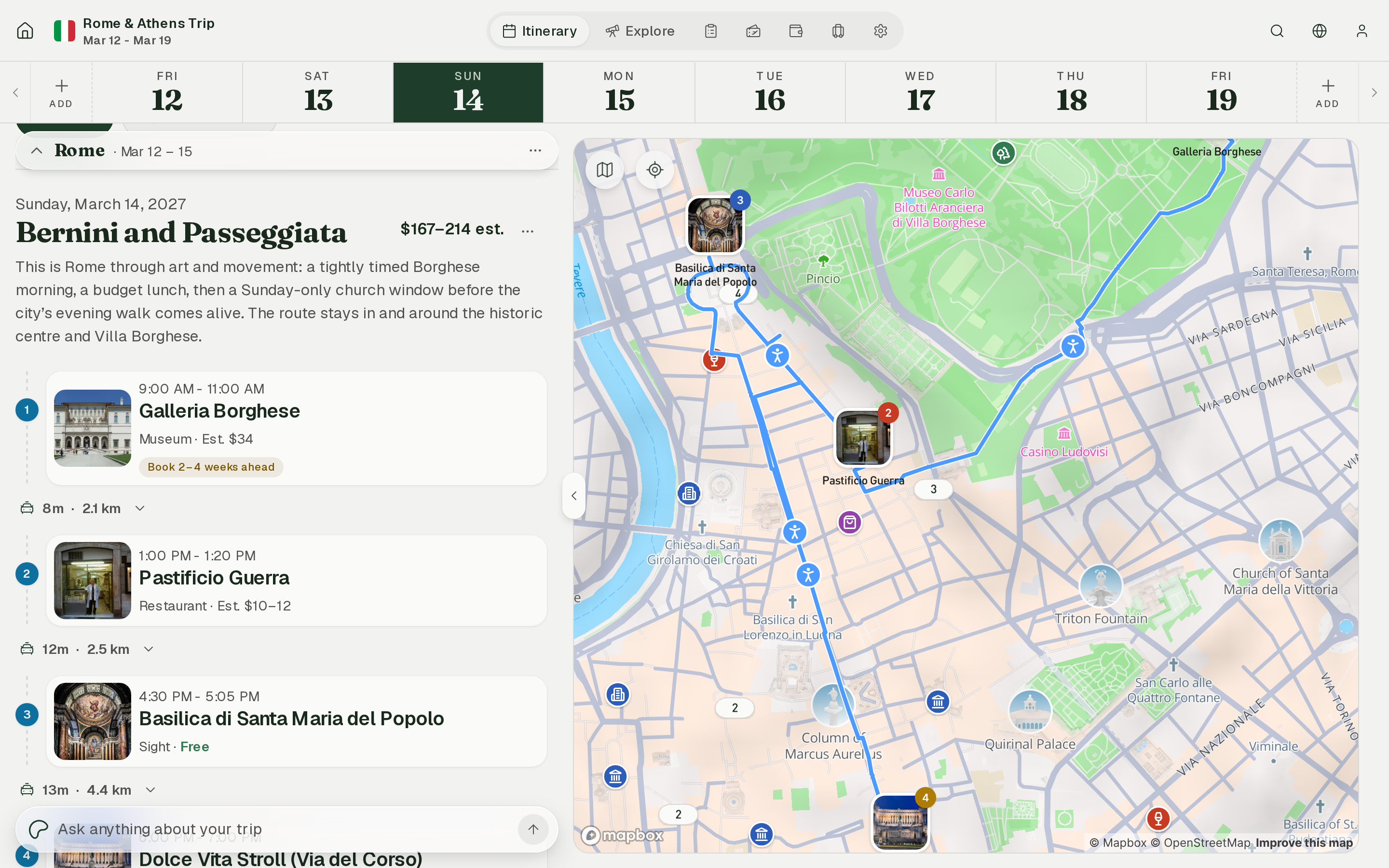
The Itinerary tab shows your trip as a feed, one day after another. Here is what each part means and where to tap to change it.
Where to find it
On iPhone: the bottom tab bar has Itinerary, Map, Explore and More, plus Today while the trip is underway. Its + button adds a day, an Activity, a Stay or Transportation.
On a wider screen the itinerary and the map sit side by side, with no separate Map tab. Drag the divider between them, or use Hide the map and Show the map.
Trip-legs
A run of days in one destination is a Trip-leg, headed Madrid · Jul 22 – 25 (or Madrid · 3 days on a trip without dates). The header stays pinned while you scroll its days.
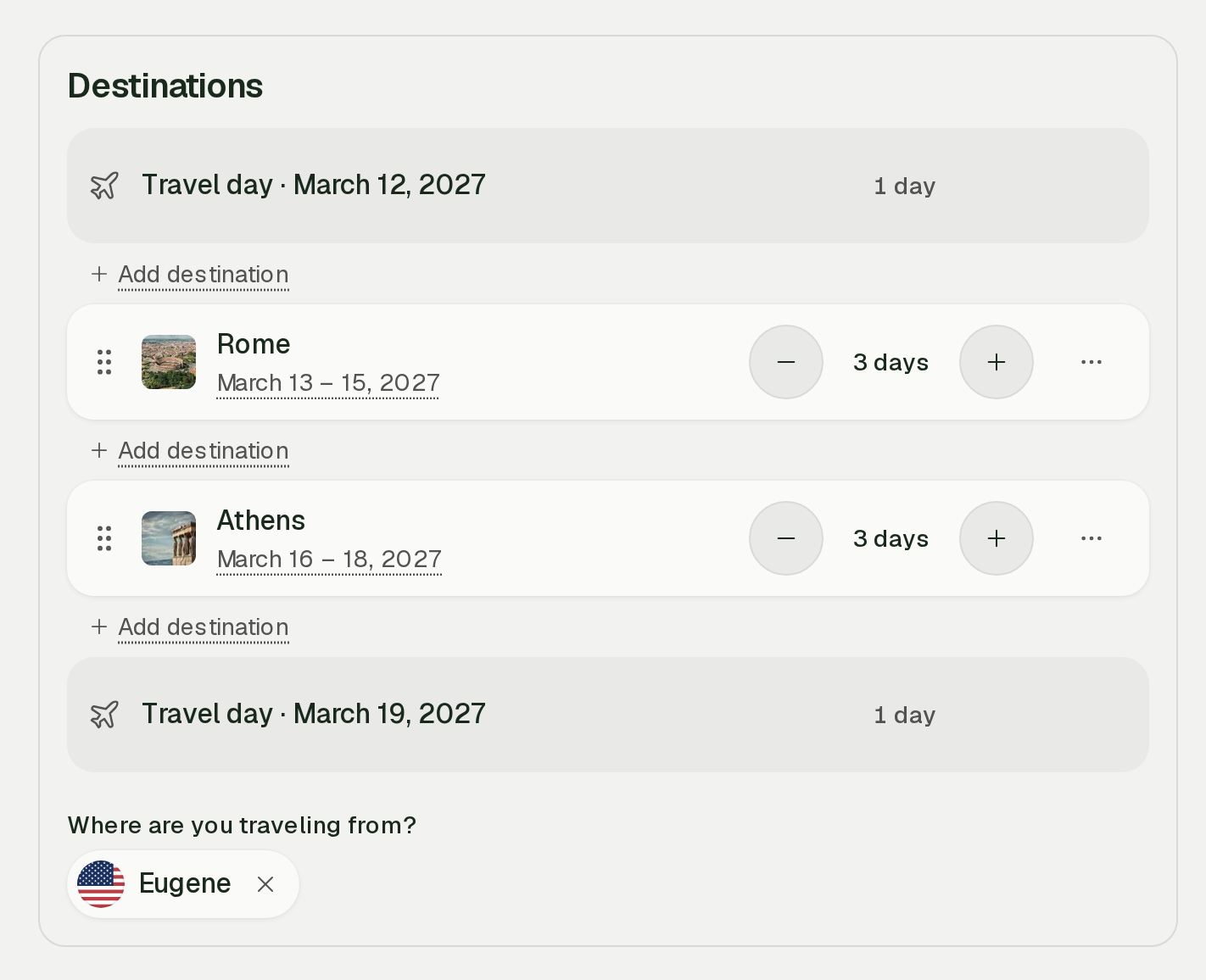
- Tap the destination name to fold that leg's days away or bring them back.
- Owners and Contributors get a ⋯ menu on the header with Swap destination, Add a day, Remove the last day, Move earlier, Move later, Add a destination before / Add a destination after, and Remove destination.
Days
Each day shows its date, its title (usually the city, or Day trip to Toledo when the day goes somewhere else), the weather, any Day photos, and a short blurb explaining how the day is built. Chips below say where the day is; tap Where is this day? to add a city.
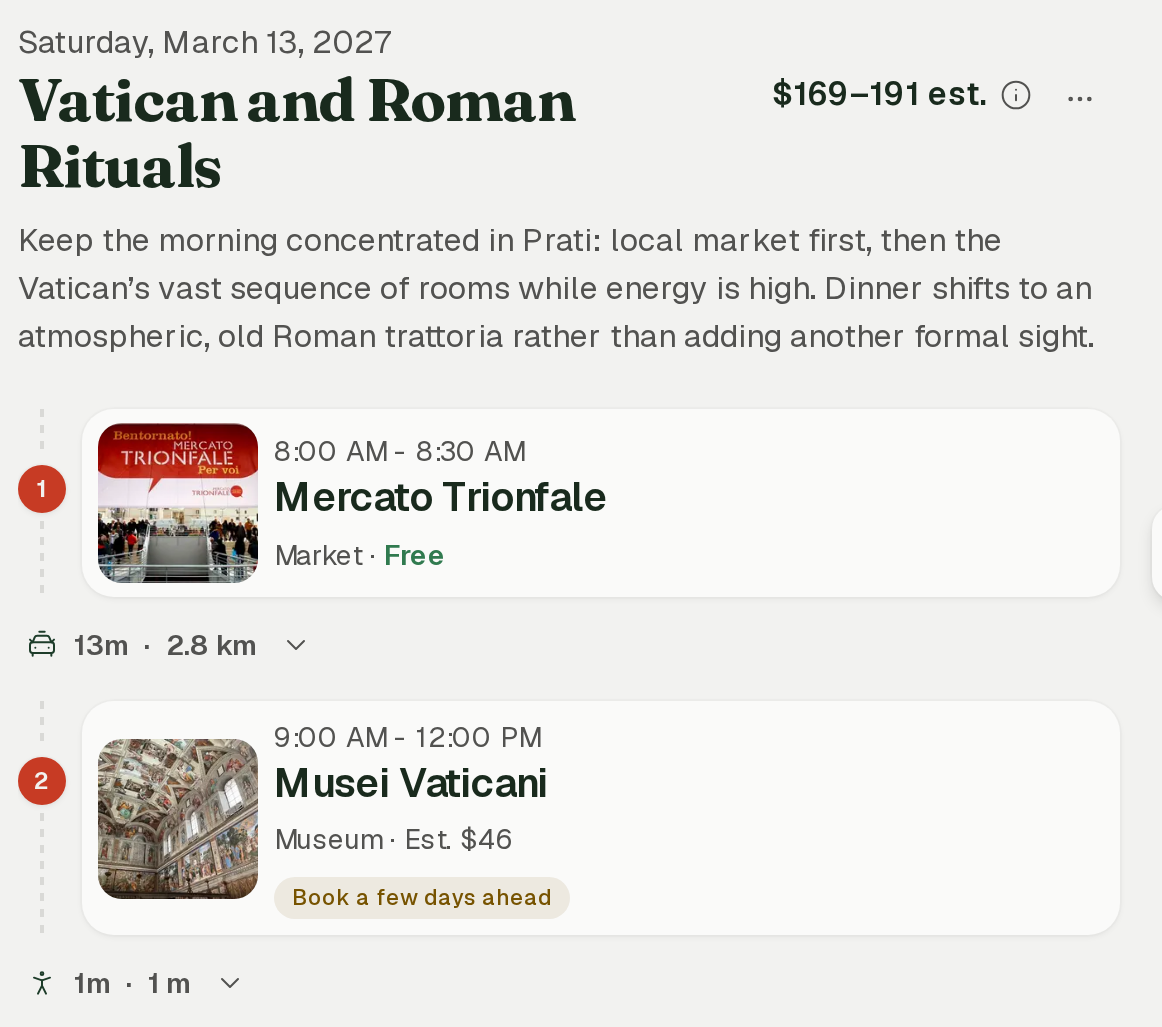
- Tap the title, or choose Rename this day from the day's ⋯ menu, to edit Day Title, Day Type and Day Framing (the blurb). The same menu has Move earlier, Move later and Remove this day.
- Day Type is City Day, Travel Day, Beach Day, Adventure Day, Cultural Day or Leisure Day. Most are labels for your own reference; on a Travel Day, Plannery won't offer to plan activities.
- Weather appears only for days within the next five days that have a location.
Stops
Every Activity on a day is a stop, numbered along the rail on the left. Tap a stop to open its details. From the stop's actions, tap Plan the day around this to plan the day around that stop. Between stops, a travel row shows how you get from one to the next; tap Travel mode to change it. An empty day offers Add First Activity and Plan this day. A day with stops also offers Plan this day, where you can choose how to plan it.
Where you wake and sleep
A day's first travel row starts From the Stay you wake up at, and its last goes To the Stay you sleep at that night. On a day you change hotels, Check out of and Check in to cards appear in order. Both come from your Stays in Bookings — to change where a day starts or ends, edit the Stay's dates, not the day.
Guide pick, Community pick, Your pick
A badge in a stop's details says where the place came from: Guide pick (curated in a Plannery city guide), Community pick (a shared spot other travelers added) or Your pick (added by you).
Right Now and Jump to Now
While the trip is underway, the stop or flight happening at this moment carries a Right Now badge, judged in that day's own time zone. Only stops with a start time qualify, and one with no end time counts for at most two hours. Most of the time nothing is Right Now — that is normal.
If that spot has scrolled off screen, a Jump to Now pill appears at the top or bottom edge, pointing the way. With nothing happening right now it goes to the next upcoming stop, or to today. On the map the pill reads Back to now.