

Creating your account and signing in
How to create a Plannery account with an email and password or with Google or Apple, sign in with a password or an emailed code, and reset a forgotten password.
You can create a Plannery account with an email address and password, or by continuing with Google or Apple. Once you have an account, you can sign in with a password, a one-time code sent to your email, or the Google or Apple account you used.
Create an account with email and password
- Go to the sign-up page (from the sign-in page, tap Sign up).
- Enter your Email.
- Enter a Password of at least 10 characters, then enter it again under Confirm password.
- Tap Create account.
- Check your inbox for a confirmation email and tap the link in it. You'll land back in Plannery signed in.
If you were invited to a trip by email, the address the invitation was sent to is already filled in.
Create an account with Google or Apple
The sign-in page also creates an account for you if you don't have one yet.
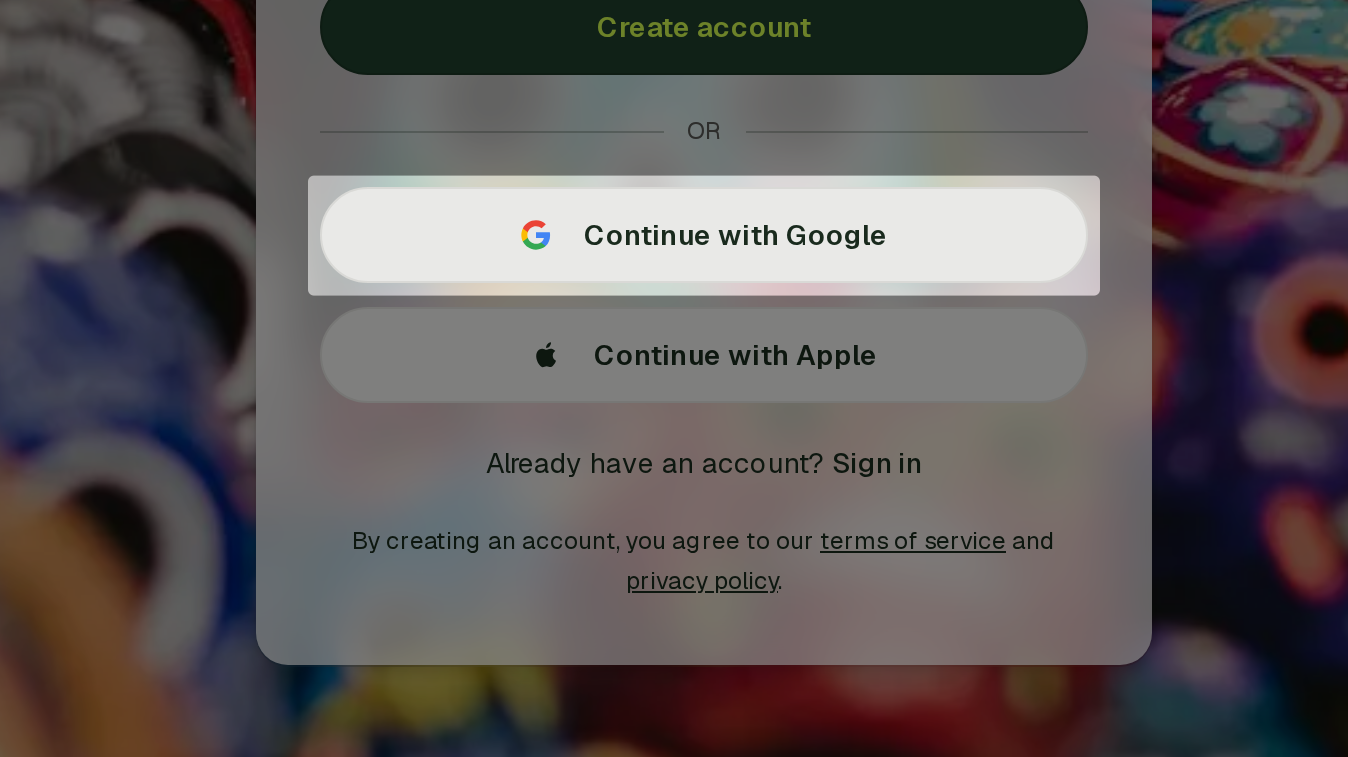
- Go to the sign-up page.
- Tap Continue with Google or Continue with Apple.
- Choose the account you want to use and confirm.
Plannery uses the name and photo from that account to start your profile. You can change your name later in Account Settings.
On iPhone: Continue with Apple opens the system sign-in sheet rather than a web page.
Sign in
The sign-in page asks for your Email first, then lets you pick how to sign in. If you have MFA enabled, you'll also see Verify your sign-in. Enter a code from your authenticator app to access your private documents.
With a password
- Enter your Email.
- Tap Sign in with password.
- Enter your Password and tap Sign in.
Tap Other sign-in options to go back to the list of methods.
With a code sent to your email
- Enter your Email.
- Tap Email me a code.
- Open the email from Plannery and enter the 6-digit code.
- Tap Verify and sign in.
If the code doesn't arrive, tap Resend code. Codes only work for addresses that already have an account — to create a new account, use a password or Google or Apple.
With Google or Apple
Tap Continue with Google or Continue with Apple and pick the account you signed up with.
Reset a forgotten password
- On the sign-in page, enter your Email and tap Sign in with password.
- Tap Forgot password?
- Enter your Email and tap Send reset link.
- Open the email from Plannery and follow the link to choose a new password.
You'll see the same "Check your email" message whether or not the address has an account. If nothing arrives, check the address for typos, or use Email me a code to sign in without a password.
What happens after you sign up
New accounts land on a short set of questions — what to call you, where you're traveling from, what matters most to you when traveling, your usual budget, and where you want to go. Every one of them can be skipped. Your answers become the defaults for new trips, and you can change them any time in Account Settings.
If you signed in with Google or Apple and later want a second way in, see Connected accounts in Account Settings.